Install XC
PDF Version: Extreme Collaboration Installation
- Go to the XC AddOn Beta for SMART Notebook webpage on SMART Exchange.
- You will be redirected to this page:
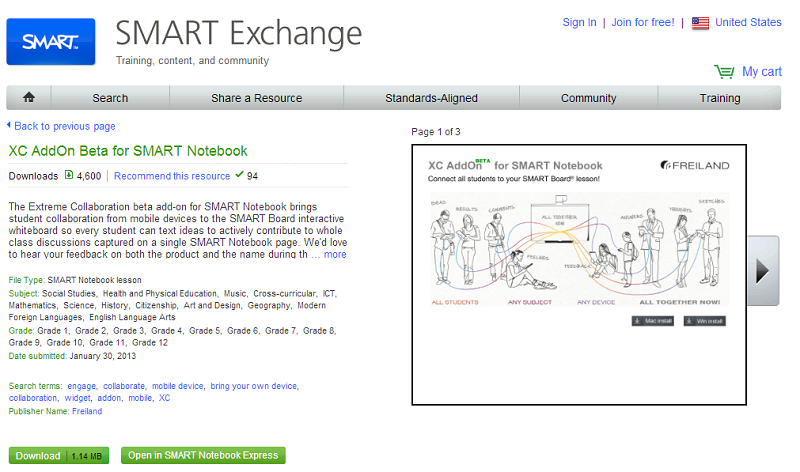
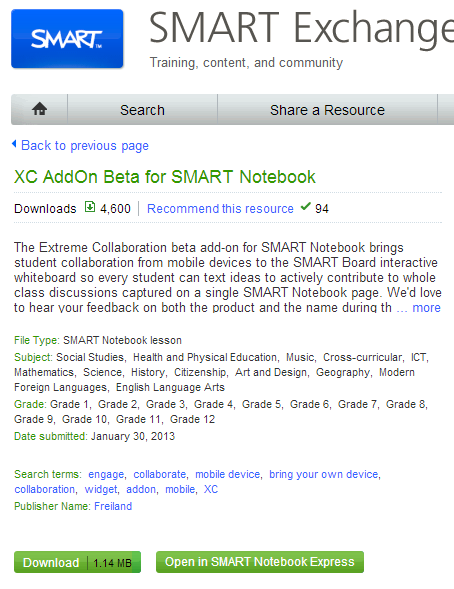
- Press the "Download" button to start the installation.
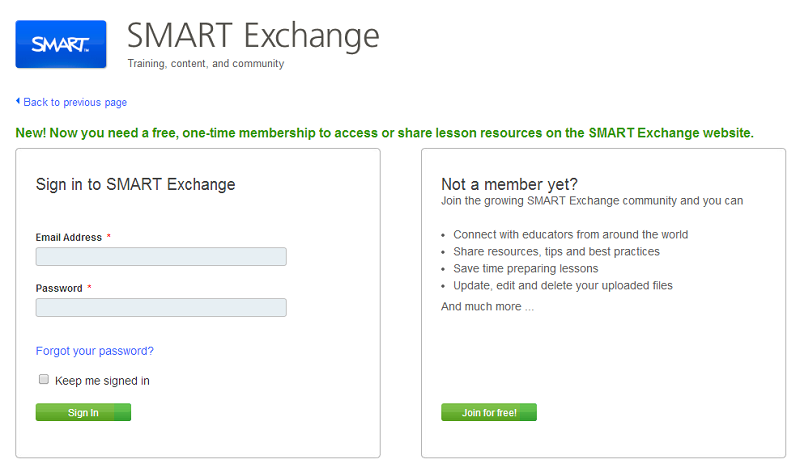
- You will be redirected to the login page. At this time:
- If you already have an account with SMART Exchange please enter your e-mail address and password and press "Sign In".
- If you don’t have an account with SMART Exchange please create one by pressing "Join for Free!"
- You will be redirected to this page again, click on "Download".
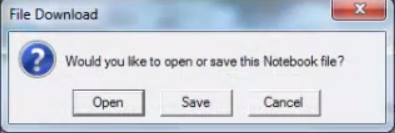 A window will appear asking you to "Open", "Save",or "Cancel", press "Save".
- Save the file to your desktop for easy access.
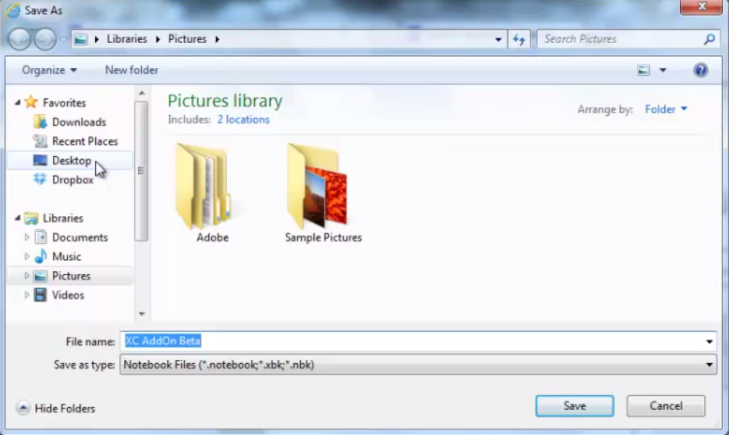
 Go to your desktop and open the newly saved file titled "XC ADDOn Beta." This will open SMART Notebook 11.
- In SMART Notebook 11, click on the paper clip.
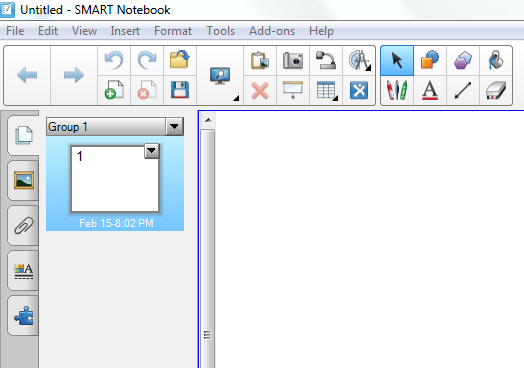
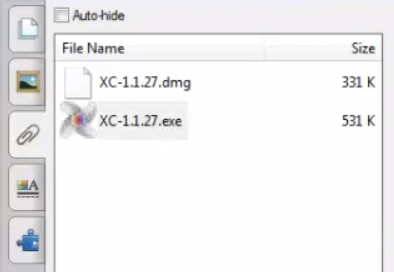 Two files should appear, drag the file XC-1.1.27.exe to your desktop.
 Once the file is on your desktop, click on file (on your desktop) to open it.
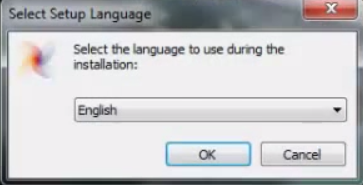 Select the preferred language and press "OK"
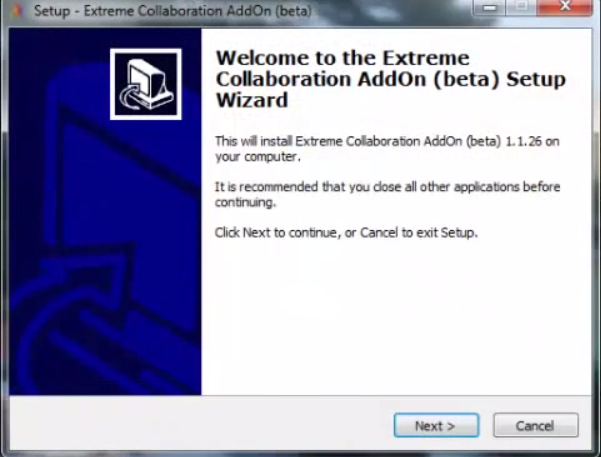
- Press "Next" on the "Welcome to the Extreme Collaboration AddOn(beta) Setup Wizard" page.
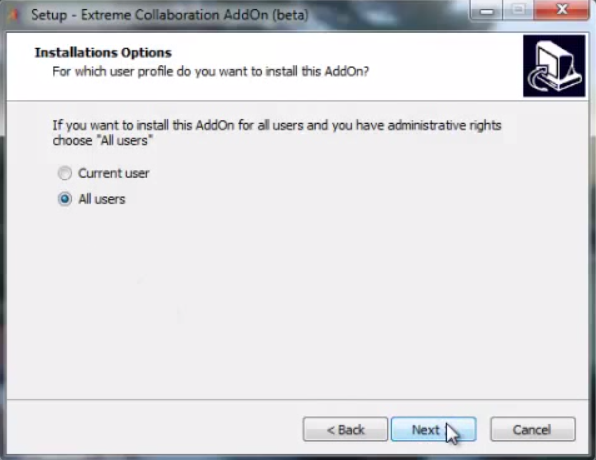 Depending on your preferences, install the AddOn for "Current user" or "All users"
- Press "Next".
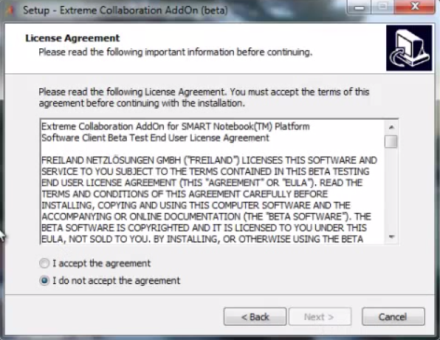 Choose "I accept the agreement".
 - Press "Next".
- Press "Install" to continue with the installation.
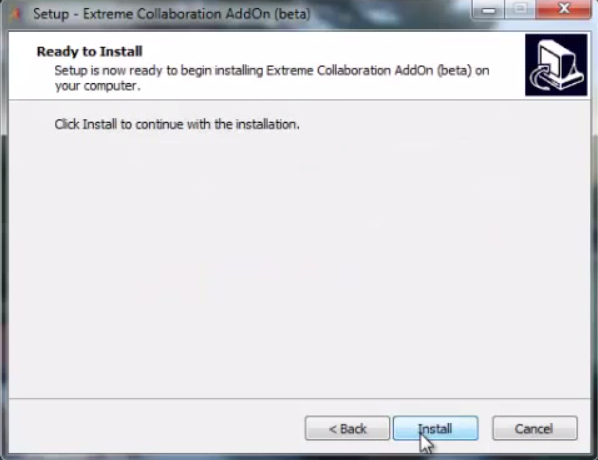
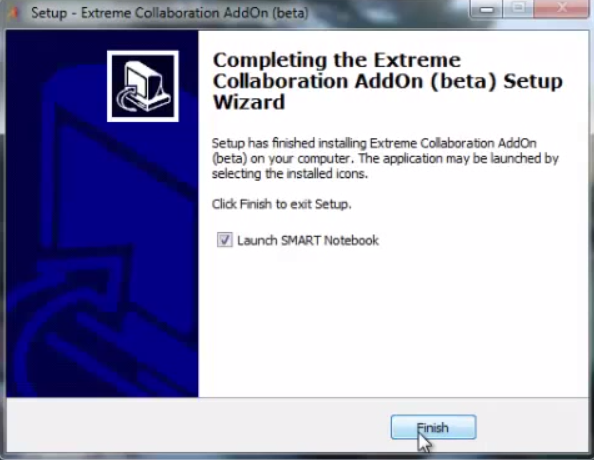
- When then installation is completed, ensure the "Open SMART Notebook 11" box is checked off and press "Finish".
 SMART Notebook 11 will open again.
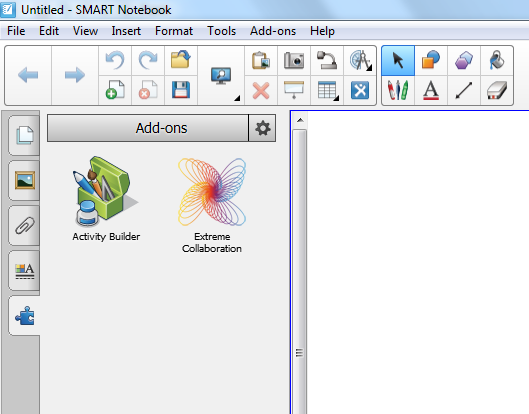
- To ensure that you have installed Extreme Collaboration correctly. Press on the puzzle piece to find the AddOn.